How to set up My Saint

My Saint puts every game, practice and event for your kids in one list. Setup takes about two minutes. The screens below are examples with made-up kids.

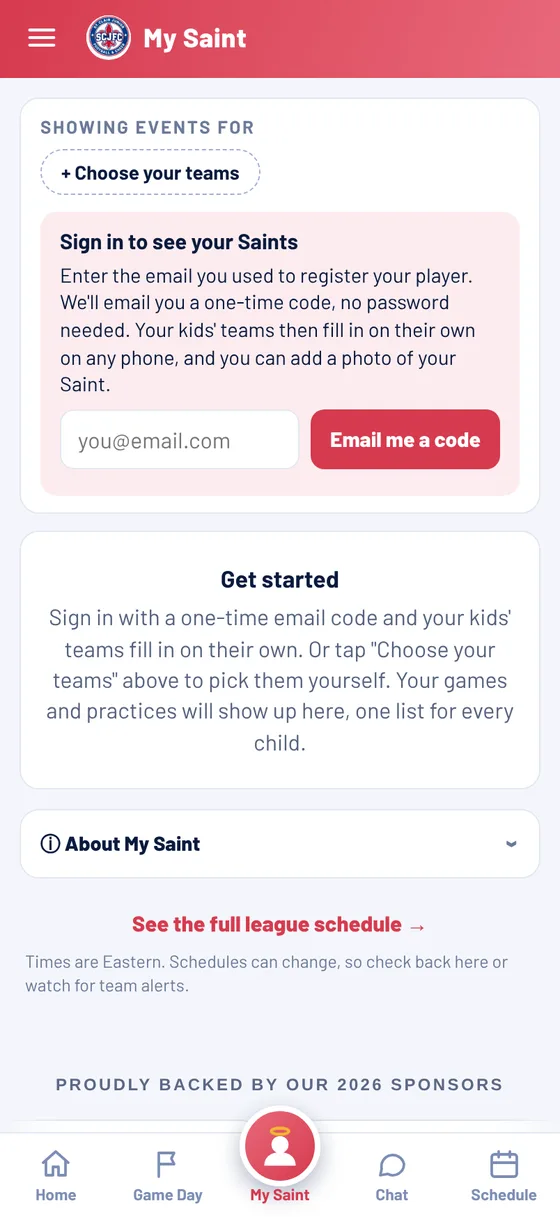
My Saint sign-in box asking for your email

1Sign in with your email

Open My Saint and enter the email you used to register your player. Tap Email me a code. No password needed. Only a registered parent, or a family member the parent added at registration, can get a code, and it only shows that family's players.
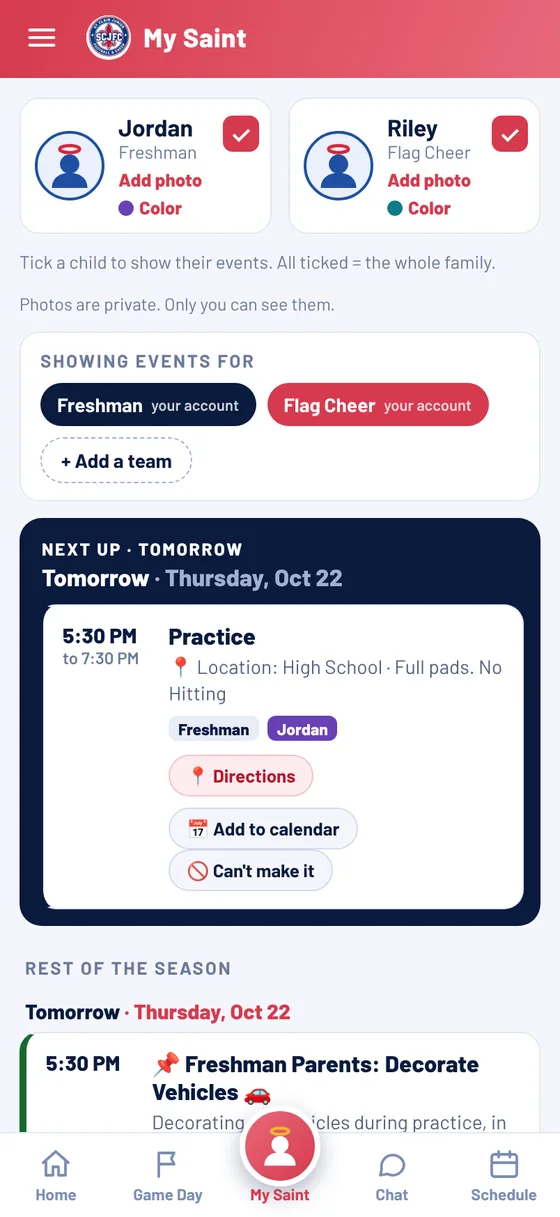
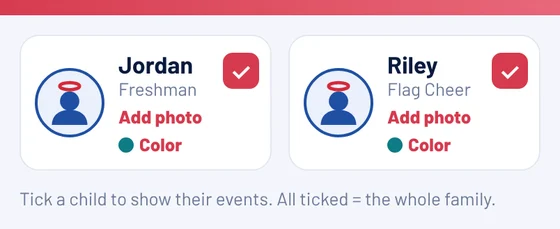
My Saint showing a card for each child

2Your kids appear

Type in the 6-digit code from your email (check spam if it's not there). Your kids and their teams fill in on their own, with each game and practice in one list.

Child cards with Add photo and Color buttons

3Add a photo

Tap Add photo on your child's card to choose a picture. It shows on their events. Photos are private. Only you can see them.

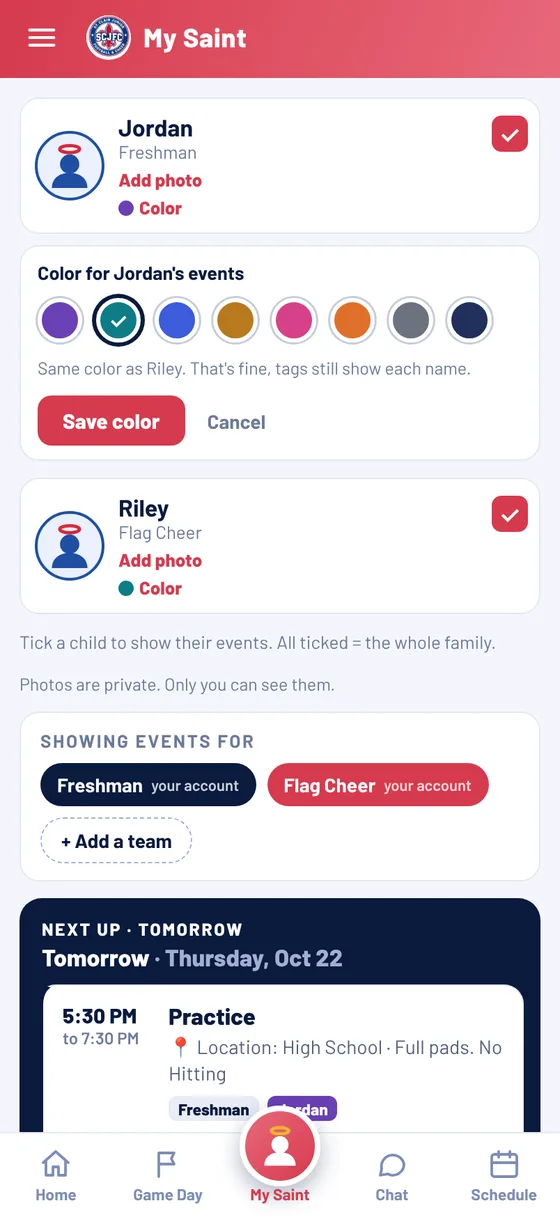
Color picker with eight colors and a Save color button

4Pick a color

Tap Color, choose one, then tap Save color. That color tags all of that child's games and practices, so you can tell them apart at a glance.

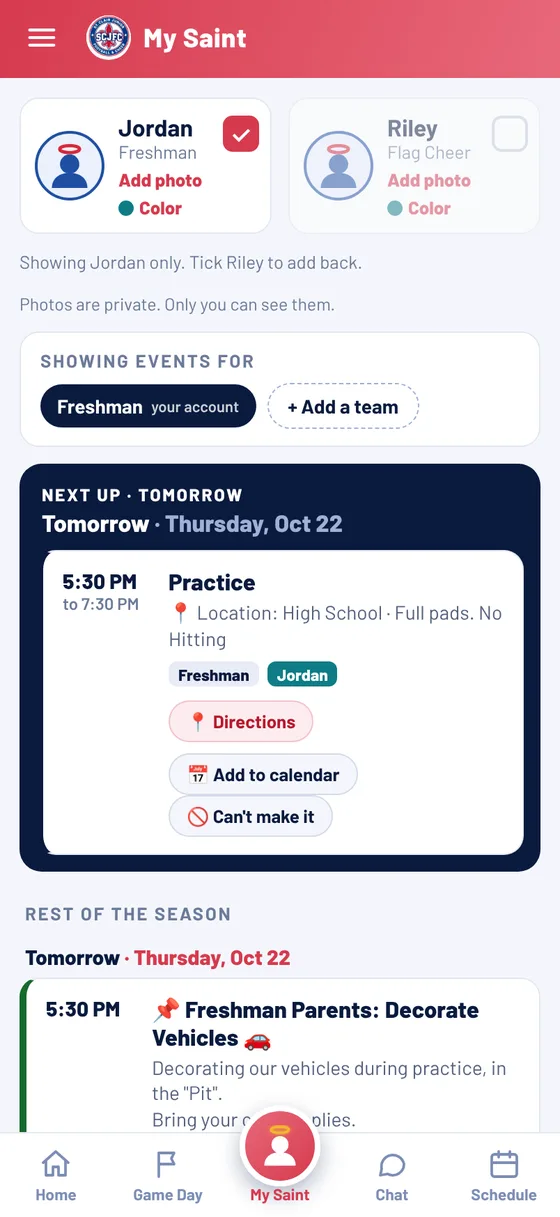
One child unticked so only the other child's events show

5Show or hide a child

Use the tick box on a card to show or hide that child's events. Both ticked shows the whole family. Untick one to see just the other.

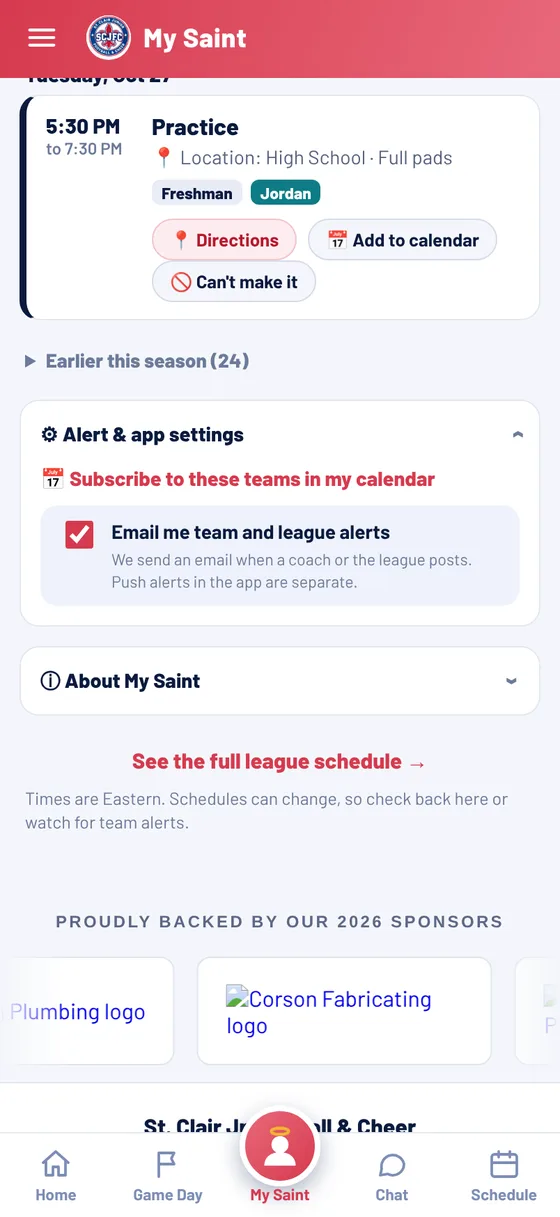
Alert and app settings section

6Turn on notifications

At the bottom, open Notification & app settings to get emails about team and league news or to add your teams to your phone's calendar. For phone notifications, see How to get notifications.

Can't see your kids? Make sure you signed in with the exact email you used at registration. A second contact email works too. Still stuck? Email apps@scjrsaints.com.